


To tie timesheets to payroll, you need three things: one agreed record of hours, pay rules set up the same way in both systems, and an approval step that closes before you run payroll. Then you move the approved hours across, either through a direct integration or a tested CSV export. Most payroll mistakes we see come from skipping one of those three, not from the software.
This guide walks through the setup, the two ways to connect your systems, the U.S. rules that change what gets transferred, and what to do when a mistake gets through.
TL;DR
- Set pay periods, overtime rules, break rules and employee IDs the same way in your time tool and your payroll system before you connect anything.
- A direct integration removes re-typing. A CSV export works too, if you test the file format on a small pay period first.
- Set a time-entry deadline before the payroll cutoff, so managers can approve hours and fix missed punches.
- Federal law requires overtime at 1.5 times the regular rate for non-exempt hours over 40 in a workweek. Your state may add stricter rules.
- Keep timekeeping and payroll records for the legal minimum, and correct filed errors with the right IRS form.
Table of Contents
- Why timesheets and payroll drift apart
- Step 1: Get your setup right before you connect
- Step 2: Choose how the hours travel
- Step 3: Collect and approve hours before payroll closes
- How U.S. rules change the hours you send
- Step 4: Check the payroll preview before you submit
- When a timesheet error reaches payroll
- Our perspective: fix the process, then pick the tool
- Get help connecting timesheets, payroll and your books
- FAQ
- Sources
Why timesheets and payroll drift apart
A timesheet records hours. Payroll turns hours into gross pay, withholdings and net pay. The trouble starts in the handoff. Someone copies hours from a spreadsheet into a payroll screen, a name is spelled differently, a lunch break is deducted twice, and an employee is underpaid or overpaid.
Each of those is small. Together they cause pay corrections, unhappy employees, and in the worst case wage claims or penalty notices. When timesheets feed payroll directly, there is no re-entry step where numbers can go wrong, and the same source says integration cuts manual entry and speeds payroll from hours to minutes. That is a vendor’s claim, so treat the exact time savings as a rough guide. The direction is sound: fewer touches mean fewer errors.
Step 1: Get your setup right before you connect
Connecting two systems with different rules only moves the mistakes faster. Before you link anything, settle these items.
Pay periods and cutoff
Your time tool’s pay period must match your payroll schedule exactly: weekly, biweekly, semimonthly or monthly, with the same start day. A timesheet week that runs Monday to Sunday feeding a payroll week that runs Sunday to Saturday is a classic source of overtime errors, because overtime is calculated per workweek. QuickBooks’ own setup guidance for its time tool starts with setting the pay period and overtime settings, reviewing payroll item and time mapping, and adding team members.
Employee identifiers and pay rates
Each person needs the same identifier in both systems: an employee ID is safer than a name. A common cause of failed payroll imports is a mismatch in data formats or employee identifiers between the two platforms. Check also that hourly rates, any second rate for different jobs, and worker type (employee or contractor) are right on both sides.
Overtime, breaks and paid time off
Decide how each of these appears on the timesheet:
- Regular, overtime and double-time hours as separate lines or codes.
- Unpaid meal breaks, either deducted automatically or clocked manually.
- Paid time off, holidays and sick leave, with matching earning codes in payroll.
- Job or department codes, if you track labor cost or pay different rates by job.
Break and meal settings deserve extra attention. One time-tracking vendor’s guide says they cause a large share of payroll mistakes, which matches what we see when we clean up books for clients.
Run a test period
Before going live, run one pay period through both systems and compare. Pick two or three employees with different situations: one with overtime, one with time off, one who forgot to clock out. If the numbers match by hand, you are ready.
If you are setting payroll up from scratch, our guide to setting up U.S. small business payroll in 7 steps covers the registrations and accounts that need to exist first.
Step 2: Choose how the hours travel
There are two practical routes. Businesses can connect through native integrations that automate the transfer, or by downloading timesheets as a CSV or spreadsheet and uploading them into the payroll platform.
| Direct integration | CSV export and import | |
|---|---|---|
| How it works | Approved hours push to payroll automatically | You download a file and upload it |
| Re-entry risk | Lowest | Low, if the file is formatted correctly |
| Setup effort | Connect accounts, map pay items once | Build and test an export template once |
| Best for | Teams already using a time tool and payroll that support each other | Mixed tools with no direct connection |
| Main failure point | Mapping errors, broken sync after a password or plan change | Format mismatch (decimal hours vs. HH:MM), wrong IDs |
Direct integration
If both tools support each other, use it. You usually authorize the connection, map each earning type in the time tool to a payroll item, and choose whether approved timesheets sync automatically or on demand. Map every earning type, including PTO and holiday pay, not just regular hours. An unmapped item is the most common reason hours “disappear” at sync.
Manual export and import
Many small businesses bridge systems this way without trouble. One 2025 guide notes that a well-configured CSV export works well when the template is tested against what the payroll system expects. That source is written from a UK perspective, but the principle applies anywhere.
A typical custom export lets you pick standard columns, add custom text fields, include earning or allowance columns, name the file, choose a format such as CSV or TXT, set sorting rules, and add header rows the payroll system requires. Your tool may differ, but ask for these options.
A workable export routine looks like this:
- Correct timesheet exceptions: missed punches, overlapping shifts, missing breaks.
- Approve each employee’s timesheet, or approve all once you have reviewed them.
- Export a CSV for the pay period, by person or by day depending on what your payroll accepts.
- Import it into payroll. If your payroll service cannot import files, enter the approved hours by hand from the export.
That sequence matches the workflow one field-service timesheet product documents: fix exceptions, approve, export, then import or key in the hours.
If the import fails, check these first:
- Decimal hours (7.50) versus hours and minutes (7:30).
- Employee ID or name mismatches, including nicknames and middle initials.
- Date format and pay period boundaries.
- Extra header rows or blank lines.
- Earning codes that do not exist in payroll.
Step 3: Collect and approve hours before payroll closes
The approval step is where most small businesses lose the most time. Late timesheets lead to estimated hours, which lead to corrections next period.
What works in practice:
- Set a time-entry deadline before the payroll cutoff. Payroll providers commonly suggest a window of 24 to 48 hours before processing starts, so supervisors can review hours and catch missed punches. Pick a window that suits your pay frequency and team size, and write it down.
- Make one person responsible for approval. For a small team, that is the owner or the office manager. Approving means reading the hours, not clicking “approve all”.
- Review exceptions first. Look at overtime, missing clock-outs, shifts over 12 hours, and edits made after the fact.
- Require a reason for edits. A manager changing hours should leave a note. It protects you in a wage dispute.
- Lock the period after approval. Late changes then go through a deliberate correction, not a quiet edit.
If employees fill out timesheets themselves, send a reminder the day before the deadline. A short, friendly nudge removes most of the chasing.
How U.S. rules change the hours you send
The hours you transfer are not just a sum of clock times. Federal and state rules shape them.
Overtime and minimum wage
Under the Fair Labor Standards Act, covered non-exempt employees must receive at least $7.25 per hour and overtime at 1.5 times their regular rate for hours over 40 in a workweek. Note “workweek”: overtime is not averaged across a biweekly period. Two weeks of 50 and 30 hours means 10 overtime hours, not zero.
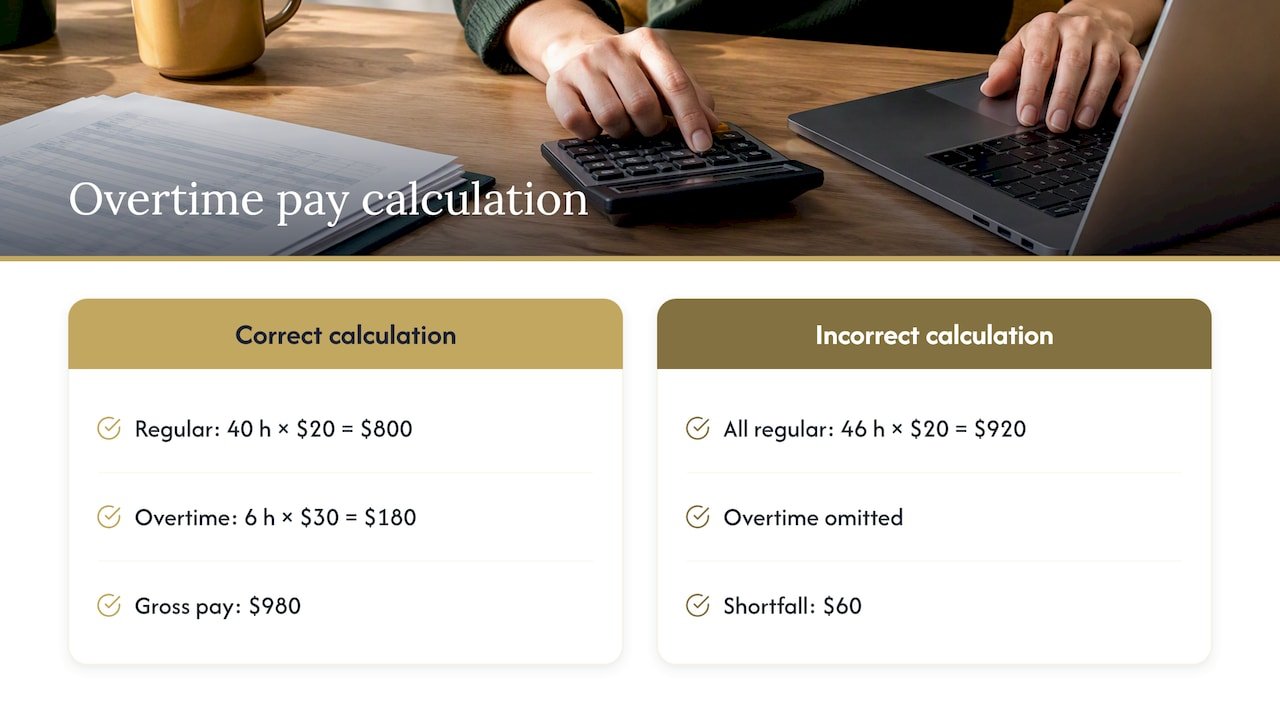
A worked example: an employee earns $20 an hour and works 46 hours in one week. Pay is 40 hours at $20 ($800) plus 6 hours at $30 ($180), for $980 gross before withholdings. If your time tool splits those into 40 regular and 6 overtime hours and your payroll applies the rates, the numbers will match. If it sends 46 regular hours, payroll would show $920 and the employee is short by $60.
The federal figure is a floor. Some states and cities set higher minimum wages or add daily overtime, so check your state labor department’s rules for each location where you have employees. Our guide to multi-state payroll rules covers what changes when staff work in more than one state.
Breaks and meal periods
The FLSA does not require meal or rest breaks, but it does say that short breaks, usually 20 minutes or less, count as hours worked, while bona fide meal periods of typically 30 minutes or more are generally unpaid when the employee is completely relieved of duty. That example comes from a DOL fact sheet written for one industry, but the break principle is general. In practice, do not auto-deduct a lunch from someone who worked through it. Let employees flag a missed break so you pay for it.
The same DOL fact sheet notes that state laws can be stricter than federal rules, including mandatory meal and rest breaks, so confirm your state’s requirements.
Exempt employees and fixed schedules
Salaried exempt staff typically do not need hourly tracking for pay, though some businesses track their time for project costing. For non-exempt employees on a fixed schedule, DOL guidance says you may record the schedule and note only the days an employee varies from it. That can simplify the timesheet for steady shifts.
Records you must keep
For non-exempt workers, employers must record hours worked each workday and total hours each workweek. Under DOL recordkeeping rules, time cards must be kept at least two years and payroll records at least three years. Any timekeeping method is acceptable, from a time clock to an app to self-reported logs, as long as the records are complete, accurate and reflect actual hours worked.
The IRS has its own clock: employers should keep employment tax records for at least four years, and records tied to certain credits may need six. In practice, keep timesheets and payroll registers together for the longest period that applies to you, and check your state, which can require more.
Step 4: Check the payroll preview before you submit
Most payroll systems show a preview before you commit. Spend five minutes on it. Look at:
- Employee count: does it match who worked?
- Totals for gross pay, pre-tax deductions, taxes and net pay: do they look normal against last period?
- Each person’s hours and any warnings.
- Anyone showing zero hours and zero gross who should be paid. A payroll guide for one back-office product suggests confirming those people have an approved timesheet, then correcting and recomputing.
Compare total hours in the preview with the total on your approved timesheet report. If they differ, find out why before you submit. A direct deposit already sent is much harder to reverse than a preview you fixed.
When a timesheet error reaches payroll
It will happen eventually. The fix depends on what went wrong.
The employee was underpaid. Pay the difference promptly, either on the next payroll or in an off-cycle payment, and record why. Underpaying overtime is a wage-and-hour issue, so do not wait.
The employee was overpaid. Talk to the employee first. State rules on recovering overpayments vary, so confirm your state’s rules or ask your accountant before deducting anything from a paycheck.
The error affected tax filings. If wages or withholdings on a filed return were wrong, you may need to amend. For an employer who files Form 944, the IRS directs you to Form 944-X to make an adjustment or claim a refund or abatement, depending on the error. Employers who file quarterly use the corresponding quarterly correction form. Our overview of amended business tax returns explains which forms apply and when.
Always keep the original timesheet, the correction, the approval note and the payment record together. If you ever face an audit or a wage claim, that paper trail is your defense.
Our perspective: fix the process, then pick the tool
We work with small business owners who come to us with payroll that has become a weekly scramble. The tool is rarely the real problem. The usual pattern is that nobody owns the approval step, pay rules live in one person’s head, and hours get retyped on a Thursday night.
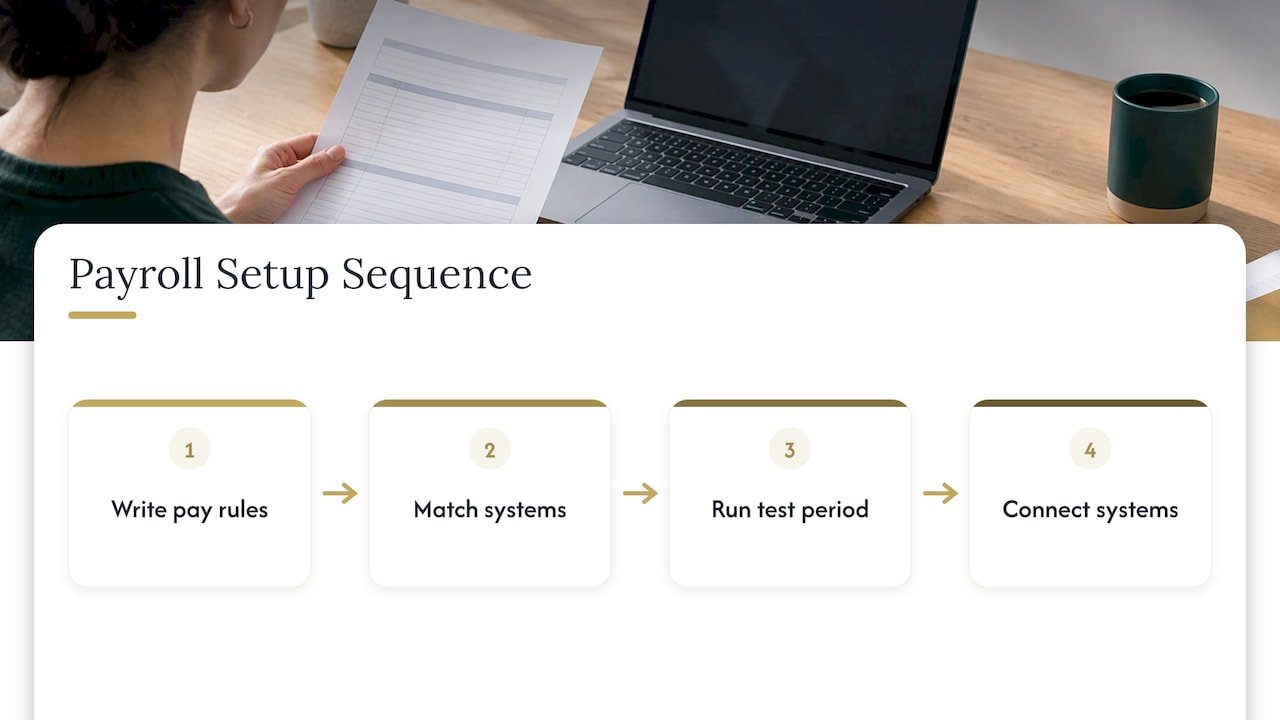
Our advice is simple. Write down your pay rules in one page: pay period, overtime rules, break policy, PTO codes, deadline and approver. Set up both systems to match that page. Run a test period. Only then connect them. When the books are clean, payroll costs show up correctly in your reports, and you can see labor cost by job or month without guessing.
We also suggest a quick monthly check: compare total payroll expense in your books to the total hours on your timesheets multiplied by average rates. A big gap usually means a mapping problem or an unrecorded correction, and finding it in one month is far cheaper than finding it at year end. Our payroll compliance checklist and year-end payroll checklist can help you keep that rhythm.
— Kelli
Get help connecting timesheets, payroll and your books
If you would rather not build this yourself, we can set it up with you. Our virtual accounting department handles bookkeeping, payroll processing, and workflow design for small businesses, with virtual and in-person support. We will review your pay rules, map your time data into payroll and your accounting records, and make sure the numbers tie out each period.

See our accounting and payroll services or book a free consultation to talk through your setup.
FAQ
Do I need software to tie timesheets to payroll?
No. Federal rules allow any timekeeping method, including paper time cards, as long as the records are accurate and complete. Software becomes worthwhile when retyping hours takes real time or errors start to appear. Even then, a tested spreadsheet export can work.
How far before payroll should timesheets be due?
There is no legal rule. Many payroll providers suggest a deadline 24 to 48 hours before processing starts, which leaves time for approval and corrections. Choose a window that fits your pay frequency and how quickly your managers review hours.
Are overtime hours calculated per pay period?
No. Under the FLSA, overtime applies to hours over 40 in a single workweek for covered non-exempt employees. Averaging across a two-week pay period is not allowed under federal rules, and some states add daily overtime on top. Make sure your time tool’s workweek matches your payroll’s.
How long should I keep timesheets?
DOL rules require time cards for at least two years and payroll records for at least three. The IRS asks employers to keep employment tax records at least four years. Keeping everything for the longest period that applies to you, or longer if your state requires it, is the safe approach.
What if my payroll import keeps failing?
Check the format first: decimal hours versus hours and minutes, employee IDs, date format and header rows. Then confirm every earning code in the file exists in payroll. Test with one employee before you upload the full file.
Sources
- Online timesheets: benefits, features, and setup for small businesses
- Set up QuickBooks Time in QuickBooks Online
- Time Tracking and Payroll: Connecting Systems for Accuracy
- How to Export Timesheet Data for Payroll Processing
- Export employee timesheets to payroll using a custom format
- Getting Hours to Payroll, PortaPro Docs
- Wages and the Fair Labor Standards Act, U.S. Department of Labor
- Fact Sheet #76, U.S. Department of Labor
- Fact Sheet #21: Recordkeeping Requirements under the FLSA
- IRS Publication 15 (2025)
- Instructions for Form 944-X
- Run payroll for a pay period, BusinessMade docs