


The QuickBooks audit trail is the built-in record of who added, changed, deleted or voided something in your books, and when. In QuickBooks Online you open it from Settings, under Audit log. In QuickBooks Desktop you open it from Reports, then Accountant & Taxes. If a number in your books looks wrong, this is where you start. It works best when someone reads it on a schedule, not only after something breaks.
This guide is for creatives and small business owners who keep their own QuickBooks file: creators, musicians, photographers, writers, talent managers and others who share access with a bookkeeper, an assistant or a CPA. We explain where to look, what each entry means, how to trace a change, and what the log cannot do.
TL;DR
- QuickBooks Online: Settings, then Audit log. QuickBooks Desktop: Reports, Accountant & Taxes, Audit Trail. Online needs admin access.
- Each entry shows the date, the user and the original transaction details. Online keeps this history for two years.
- Filter by user, date or event to trace one change. Unfamiliar user names are often automatic system profiles, not people.
- A deleted transaction cannot be restored. You can read its details in the log and re-enter it by hand, so void instead of delete.
- A log only helps if someone reviews it. We can do that review monthly as part of your bookkeeping.
Table of Contents
- What the audit trail is and why it matters for your books
- How to find the audit trail in QuickBooks Online
- How to find the audit trail in QuickBooks Desktop
- What each entry tells you
- Trace one change step by step
- Deleted transactions: what the log can and cannot do
- What if a change does not appear in the log?
- A monthly audit trail review you can repeat
- Who should read the trail: you or your accountant
- What we do with the audit trail
- Our perspective
- FAQ
- Talk to us
- Sources
What the audit trail is and why it matters for your books
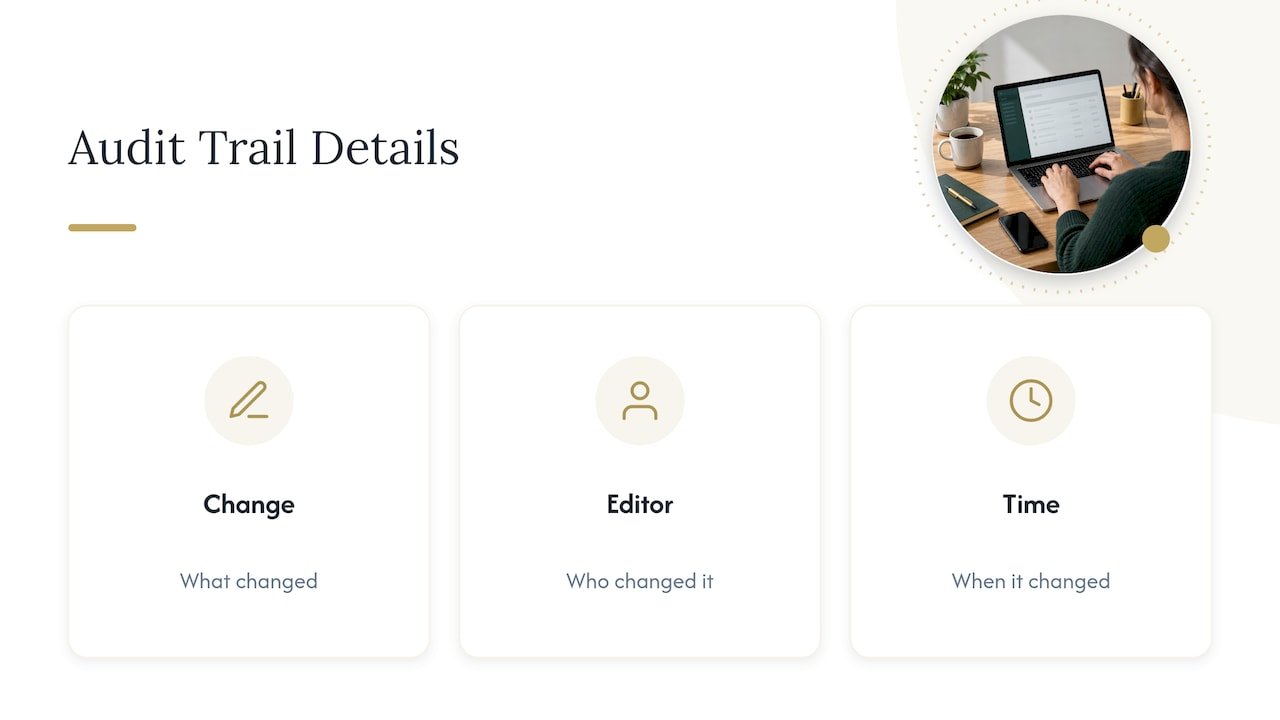
An audit trail is a time-stamped record of changes. It answers three questions: what changed, who changed it, and when. For a creative business with several people touching the books, that matters more than it sounds.
Picture a talent manager whose assistant enters brand-deal invoices, a podcaster whose bookkeeper reconciles the bank account, and an owner who occasionally fixes a number late at night. Three people, one file. When a month-end balance shifts after you already reviewed it, the audit trail tells you which of the three made the change and what the original looked like.
It also protects you with outsiders. A clean, reviewable history of your records is part of keeping a business in good standing. If you want the wider picture of why records matter, this piece on keeping business records explains how records support a company legally, using California as its example.
How to find the audit trail in QuickBooks Online
Intuit’s instructions are short. In QuickBooks Online, open Settings and select Audit log. You need an active subscription and admin access. If the option is missing from your menu, ask your primary admin to open it for you or to change your access.
If you work with an outside accountant, the view is slightly different. According to Intuit’s explanation of how clients and accountants see the log, you see which firm made a change, while people inside that firm see the specific user. So an entry showing a firm name is not a mystery login. It is your accounting team’s work.
How to find the audit trail in QuickBooks Desktop
Desktop calls it the Audit Trail report. Go to Reports, choose Accountant & Taxes, then select Audit Trail, as described in an Intuit Community answer. From there you can use Customize Report and the Filter tab to narrow the report to specific accounts. Set the Date Entered/Last Modified field to Custom to pick your own date range.
Two differences are worth knowing. Desktop’s trail focuses on transactions: the earlier and current state of a transaction. The Online log records more kinds of activity, which we cover below. Because Desktop keeps its history with the company file, that history is only as safe as your file backups.
What each entry tells you
In QuickBooks Online, the log shows the date of the change, the user who made it and the original transaction details, with history available for two years. Beyond transactions, it also records:
- Sign-ins
- Settings changes
- Edits to customers, vendors and employees
- Payroll submissions
To read the detail behind a line, select View in the History column. That opens the audit history of that transaction, so you can compare what it said before with what it says now.
A few small points save confusion:
- Sign-outs are logged only when someone selects Sign out. Closing the browser, navigating away or an automatic inactivity sign-out is not recorded.
- Events such as sign-ins and setting changes have no field-level history. You see that they happened, not a before-and-after of each field.
- Indirect edits are recorded too. If someone edits a reconciliation and that alters a transaction, you can see it in the transaction’s history.
Trace one change step by step
Say your March income looks lower than you expected. Here is a routine that works in QuickBooks Online.
- Open Settings, then Audit log.
- Select Filter and set the User, Date or Events fields. Start with a date range around the day you first noticed the problem.
- Select Apply. Results appear 150 records at a time, so narrow the filter before scrolling.
- Find the suspect line and select View in the History column.
- Compare the original details with the current ones, and note the user and date.
- Decide what is correct, fix it, and write a short note on why.
Where this goes wrong: people filter by the date of the transaction, when the change happened on a different day. A January invoice edited in March shows up under March in the log. Filter by when the edit was made, then widen the range if nothing appears.
Step 6 is where a bookkeeper earns their keep. Finding the change takes minutes. Deciding whether it was a legitimate correction, a typo or a misunderstanding of how a client payment should be recorded takes judgment. Our team does that review as part of monthly bookkeeping, and we explain the fix to you in plain language.
Who made that change? Unrecognized names
If you see a user you do not recognize, do not assume the worst. Intuit says unrecognized names are usually automatic system profiles: Online Banking Administration, Support Representative, System Administration and Import Administration. They cover things like bank feed matches and imports. That lets you separate human edits from automatic ones, then filter by one specific person to review only their work.
If bank feed matches are behind the changes you see, our guide on fixing bank feed problems covers the usual causes.
Deleted transactions: what the log can and cannot do
This is the question behind most searches for the audit trail. The answer is simple but unforgiving: once a transaction is deleted in QuickBooks Online, it cannot be restored. The audit log still holds its details, so you can read them and re-enter the transaction by hand. Intuit recommends voiding instead of deleting.
To find a deleted item:
- Open the audit log and filter by the date range when you think it was removed.
- Use your browser’s find command (Ctrl + F) and type “deleted” to jump to those lines.
- Open the history and copy the date, customer or vendor, account and amount.
- Re-enter the transaction with the same details.
Intuit also notes that the log only covers transactions that were saved, and there is no dedicated report for deleted transactions.
Void or delete?
Voiding keeps the transaction in your books at zero, so the record and its number stay visible. Deleting removes it, leaving only a line in the log. For invoices, checks and payments, void unless the entry was a true duplicate or a mistake that never reached a customer. That keeps your numbering clean and your history readable for anyone who looks later.
If the deleted item was already reconciled, you also need to repair the reconciliation. Intuit’s help page shows how to find who undid a reconciliation: go to Settings, then Audit log, and select Reconciliations from the Events dropdown. The history lists every change from newest to oldest, with the person who made each one. Our walkthrough of the monthly bank reconciliation process shows how to keep reconciled periods from drifting.
What if a change does not appear in the log?
Before you decide the log is broken, run through the usual reasons.
- It is older than two years. The Online log keeps history for two years, so older edits will not appear. If you need earlier periods, you depend on exports or reports saved at the time. Save a copy of each year’s closing reports and keep them with your records.
- It was never saved. The log covers saved transactions. A draft you closed without saving leaves nothing to find.
- Your filter is too narrow. Clear the User and Events fields, then widen the date range. Remember to use the date of the edit, not of the transaction.
- The change was made by an automatic profile. Look for the system names listed above rather than a person’s name.
- You do not have admin access. Limited users may see only part of the picture. Ask your primary admin.
- It is a sign-out or a field-level detail. Those events are not tracked at that depth.
If none of these explain it, the change may have happened outside the transaction you are looking at: an edited reconciliation, a merged account or a changed customer record. Search by event type, not by amount.
One more limit: the Online log does not tell you which reports someone viewed or downloaded. It shows changes, not reading. If you are sharing a file with several people, set permissions deliberately instead of relying on the log to catch everything.
A monthly audit trail review you can repeat
The audit trail is most useful when it is a routine. Fifteen minutes a month beats a three-hour hunt at tax time. Here is a short review:
- Filter the log for the past month and scan the list of users. Every name should be a person you know, a firm you work with or a system profile.
- Filter by the Reconciliations event. Reconciled periods should not change without a reason.
- Filter for deletions and note each one. Each should have an explanation.
- Check edits to customers, vendors and employees, especially bank or payment details.
- Check payroll submissions against what you approved.
- Save a month-end report set, so you have it after the two-year window closes.
For the rest of your monthly habits, see our bookkeeping best practices. If you keep a messy backlog, catching up on bookkeeping comes first, since an audit trail of a half-finished file only records the chaos.
Who should read the trail: you or your accountant
Reading a log is easy. Interpreting it is the hard part. A change by a bookkeeper at 11 p.m. can be a legitimate correction or a worrying one, depending on the account it touched and what else moved that week. That is also why a small team with defined roles produces a cleaner trail than one where everyone has full access.
A few access habits help:
- Give each person their own login. Shared logins make the log useless, because every entry carries the same name.
- Give people the least access they need to do their job.
- Remove access promptly when someone stops working with you.
Tax questions come up here too. Edits to your books change your tax picture, and U.S. tax rules vary by state, so a change that is harmless in one state may matter in another. We can handle your tax preparation ourselves or work alongside the CPA you already have. In both cases, a clean record helps whoever prepares your return.
What we do with the audit trail
KelliWorks is a hands-on business manager and accounting department in one. We run bookkeeping and monthly reporting, tax planning and preparation, bill pay, collections, entity, banking and compliance, so you can stay focused on the work. Reviewing who changed what in your books fits naturally inside that monthly routine. Confidentiality is standard practice for us, and we are glad to sign an NDA before we start.
Our full-service accounting and bookkeeping work comes with one flat monthly fee agreed up front, never a percentage of your income. You get a real team, not an app: we manage your books, not just report on them.

If you also want help with entity setup, banking and annual filings, our business management services cover financial management and compliance in one place.
Our perspective
Most audit trail problems we see start the same way. Several people have access, nobody owns the review, and the log is opened for the first time when something already looks wrong.
We think of the audit trail as a quiet monthly habit. It is not a forensic tool you pull out in a crisis. When someone reviews it every month, a strange edit is a five-minute question instead of a two-year-old mystery that has already aged out of the log.
That is why our work is built around one team that manages the money side from end to end: bookkeeping, reconciliations, bill pay, collections and compliance. When one team does the work and reviews the changes, your records tell one clear story. You keep your attention on your shows, your music, your clients and your craft.
If you already work with a CPA, we work alongside them. If you do not, we can handle tax ourselves. Either way, you get a record you can trust.
Kelli
FAQ
How do I view the audit log in QuickBooks Online?
Open Settings and select Audit log. You need an active subscription and admin access. If you do not see it, ask your primary admin to change your access.
How long does QuickBooks Online keep audit log history?
The log holds history for two years. Anything older will not appear, so save month-end and year-end reports and keep them with your records. That is the only way to look back further.
Can I restore a transaction I deleted?
No. QuickBooks Online does not restore deleted transactions. You can find the details in the audit log and re-enter the transaction by hand. Voiding instead of deleting keeps the record visible in your books.
Why does a user I don’t recognize appear in the log?
It is often an automatic profile, such as Online Banking Administration, System Administration, Import Administration or Support Representative. These record automatic actions like bank feed matches and imports. If it is a personal name you do not know, review who has access to the file.
Talk to us
If you would like someone else to watch your books, review the changes each month and keep your records tidy, we would be glad to talk. Book a free consultation at kelliworks.com/consultation.
Sources
- Use the audit log in QuickBooks Online
- How clients and accountants view the audit log
- Use the audit log to re-enter deleted transactions
- View details for missing reconciliation reports or reconciled transactions
- How do I find the audit log in QuickBooks Desktop?
Recommended
- How to Read Financial Statements for Small Business
- The Role of General Ledger in Small Business Finance
- Stop Plug Entries: Monthly Bank Reconciliation for Small Businesses
- Bookkeeping for Startups: A Founder’s Financial Playbook
This article is general information, not tax, legal or financial advice. Talk to a professional about your situation.


