


Start with a manual update in QuickBooks, then sign in directly to your bank’s website to check for alerts, and reconnect the account if needed. Most bank-side errors clear up within 24 to 48 hours, so if you need accurate numbers sooner, a manual file import is a safe bridge while you wait.
TL;DR:
- Errors 102 and 105 signal bank maintenance and often clear within 24–48 hours; error 103 usually reflects incorrect credentials or blocked outside access.
- Start with a manual update, then check the bank website for alerts, security prompts, changed terms, or permission settings before editing credentials or reconnecting.
- Before disconnecting an account, review pending transactions and back up Desktop company files; after reconnecting, verify the date range and compare entries with a bank statement.
- A successful bank connection in a QuickBooks Desktop test file points to a problem in your original company file, not the bank.
- If payroll or cash flow decisions need current figures, import a bank file manually in a short date range and check for duplicates before reconciliation.
Table of Contents
- Common QuickBooks Bank Feed Errors and What They Mean
- Prioritized Steps to Restore Your Bank Feeds Fast
- How to Disconnect and Reconnect an Account Without Duplicates
- Fixing Persistent Bank Feed Problems in QuickBooks Desktop
- Manually Importing Transactions as a Temporary Workaround
- Habits That Keep Bank Feeds From Breaking Again
- When to Escalate to Support or Bring in Bookkeeping Help
- Deciding Whether to Wait or Act Now
- Let KelliWorks Handle Your Bank Feed and Bookkeeping Headaches
- FAQ
- Sources
Common QuickBooks Bank Feed Errors and What They Mean
Recognizing the error code is the fastest way to know what you’re dealing with. Each one points to a different root cause, and matching the fix to the cause saves you from wasting time on the wrong repair.
- Errors 102 and 105 usually mean the bank is doing maintenance or has changed something on its end, and they typically resolve within 24 to 48 hours.
- Error 103 often means your username or password is wrong, or your bank requires third-party access to be enabled before QuickBooks can connect.
- Error 108 signals that your bank has a message waiting for you, and you need to sign in to the bank’s site directly to acknowledge it.
- OL and OLSU errors are specific to QuickBooks Desktop and usually point to an outdated Financial Institutions Directory or a connection problem between your file and the bank’s server.
- Errors 390 and 1000 in QuickBooks Online mean the connection needs to be reestablished through a disconnect and reconnect.
One way to confirm whether the problem is on the bank’s side or inside QuickBooks is to open a test company file. If the feed connects there, your original file likely has a separate issue, not a bank connection problem.
Prioritized Steps to Restore Your Bank Feeds Fast
Work through these in order. Most feed issues clear up in the first two or three steps, so there’s no need to jump straight to disconnecting an account.
- Run a manual update. In QuickBooks Online, go to the Banking tab and select Update. In Desktop, use the Update option inside Bank Feeds.
- Sign in to your bank’s website directly. Look for security prompts, new terms to accept, or a toggle for third-party access that needs to be turned on.
- Open a private or incognito browser window before checking your bank credentials. Saved autofill passwords are a common cause of failed logins that look like a QuickBooks problem but aren’t.
- Update your sign-in info inside QuickBooks using the Edit sign-in info or Fix Now option if your bank changed your password or security questions.
- Review pending transactions before disconnecting anything. Reconnecting without checking what’s already downloaded is the single biggest cause of duplicate entries.
Pro Tip: Run the manual update and check your bank’s website in the same sitting. Half the time, the fix is a message sitting unread on the bank’s side, not a QuickBooks setting at all.
How to Disconnect and Reconnect an Account Without Duplicates
When a manual update and credential check don’t resolve the issue, a clean disconnect and reconnect is the next step, especially for errors like 390 or 1000 that explicitly ask for it.
- Back up your company file and review everything in the pending tab before you touch the connection.
- To disconnect, open the bank tile, select Edit, then choose Disconnect this account on save.
- To reconnect, select Link account and search for your bank by name, choosing the entry that matches your actual account type.
- If several similar bank names appear, check your bank statement for the exact institution name QuickBooks uses in its directory.
- After reconnecting, check the date range being pulled and verify a small sample of transactions against your bank statement before reconciling anything.
For a fuller approach to catching missed transactions and avoiding plug entries after a reconnect, our monthly bank reconciliation process walks through the cleanup step by step.
Fixing Persistent Bank Feed Problems in QuickBooks Desktop
Desktop has its own set of fixes that Online doesn’t need, mostly tied to the Financial Institutions Directory and how your file talks to the bank’s server.
- Update or manually refresh the FiDir if your bank feed has been stuck since a software update. QuickBooks occasionally ships a corrected directory file for banks that changed their connection method.
- Deactivate online services for the affected account, import a .qbo file manually to stay current, and reactivate the connection once the underlying issue clears.
- Create a test company file and try connecting the same bank account there. A successful connection in the test file points to data damage in your original file rather than a bank problem.
- Hold the Ctrl key during setup at the point where Desktop normally blocks a reactivation step. This is a documented workaround for certain OL and OLSU errors that get stuck mid-setup.
Manually Importing Transactions as a Temporary Workaround
When a bank-side outage drags on and you need accurate books now, downloading a .qbo, .qfx, or .csv file from your bank and importing it directly is a widely used workaround that keeps your reconciliation on track while the feed itself stays broken.
- In Desktop, use File then Utilities then Import to bring in the downloaded file.
- In QuickBooks Online, select Link account, then choose the option to upload a file instead of connecting live.
- After importing, scan the new transactions against what’s already in your register to catch duplicates before they hit your reconciliation.
Pro Tip: Import a short date range, a week or two at a time, instead of months of history at once. It’s far easier to catch a duplicate in a small batch than to untangle one buried in ninety days of transactions.
Habits That Keep Bank Feeds From Breaking Again
A few routine habits go a long way toward keeping your feeds stable month after month.
- Keep QuickBooks and your browser updated, and watch for vendor notices about banks requiring reconnection by a set date.
- Use consistent, current bank credentials, and verify logins in a private browser whenever you relink an account.
- Stick to frequent backups and a regular reconciliation schedule so a missed sync gets caught in days, not months.
- Write down a simple routine for monthly feed checks and who to contact first, your bank or QuickBooks support, if something breaks.
Pairing this with solid bookkeeping habits overall makes bank feed issues far easier to catch early rather than discover during tax season.
When to Escalate to Support or Bring in Bookkeeping Help
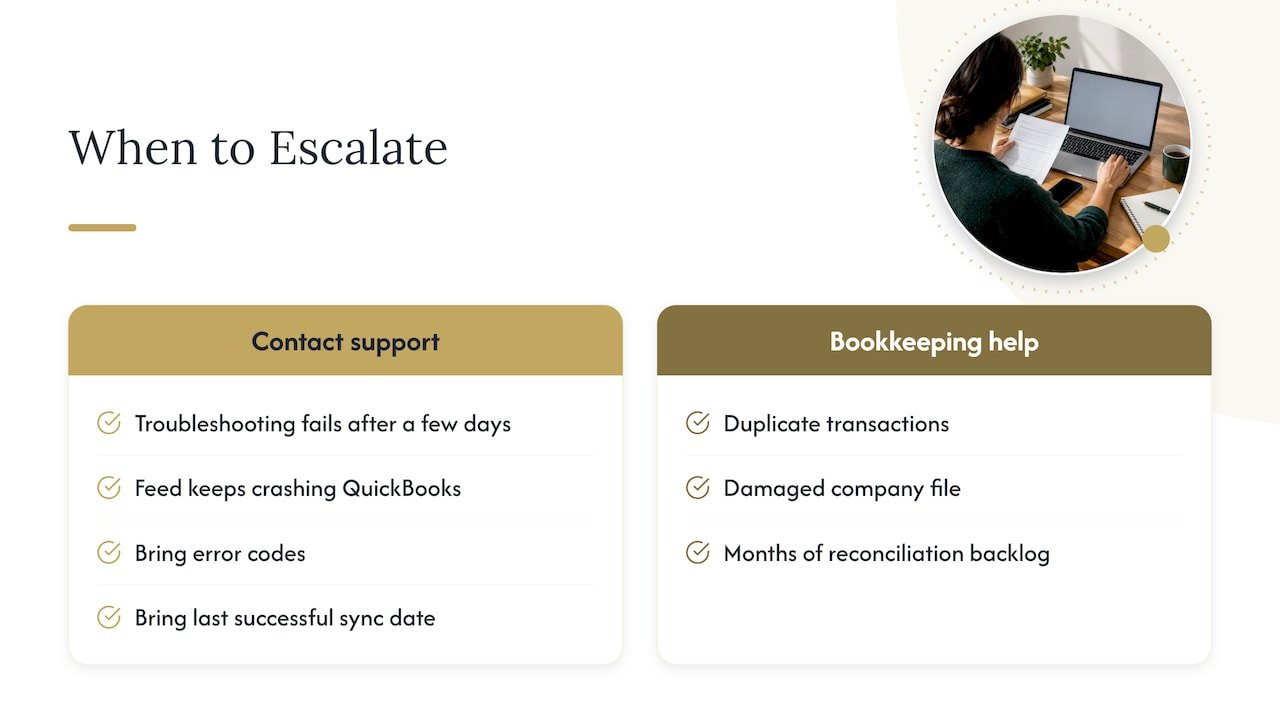
If standard troubleshooting hasn’t worked after a few days, or the feed keeps crashing QuickBooks outright, it’s time to contact support directly. Bring your error codes, the last date your feed synced successfully, and any recent software updates you’ve applied.
If you’re instead facing a pile of duplicate transactions, a damaged company file, or months of backlog to reconcile, that’s a sign to bring in bookkeeping help rather than keep troubleshooting solo.
Deciding Whether to Wait or Act Now
If payroll or cash flow decisions depend on accurate numbers today, don’t wait on a bank fix. Import your transactions manually and reconcile by hand. If nothing urgent is riding on it, give the bank 24 to 48 hours before you touch anything else.
— Kelli
Let KelliWorks Handle Your Bank Feed and Bookkeeping Headaches
When a broken bank feed turns into a backlog of unreconciled transactions, we step in to untangle it and get your books current again. We offer bookkeeping, reconciliation cleanup, and account management services to help keep your accounts organized.

Bring us your error codes, your last successful sync date, and access to your company file, and we can usually tell you within one conversation whether this is a quick fix or a deeper cleanup. For businesses juggling payment recovery on top of reconciliation, workflows like this payment recovery playbook pair well with getting your bank feeds stable again. Visit our accounting and bookkeeping services page to set up a consultation.
FAQ
How do I connect a bank feed to QuickBooks Online?
Go to the Banking tab, select Link account, and search for your bank by name. Follow the prompts to enter your online banking credentials, then choose which accounts to connect to QuickBooks.
Why isn’t my bank account updating in QuickBooks?
The most common causes are a bank-side message waiting for acknowledgment, expired credentials, or a temporary bank-side outage that usually clears within 24 to 48 hours. Running a manual update and checking your bank’s website directly will usually tell you which one it is.
Why is QuickBooks Desktop not opening?
This is typically unrelated to bank feeds and more often tied to a damaged company file, a pending Windows update, or a corrupted installation. Opening a test company file is a quick way to check whether the problem is with your specific file or with the software installation itself.
How do I disconnect and reconnect a bank account in QuickBooks?
Open the account tile, select Edit, and choose the disconnect option, but review your pending transactions first to avoid creating duplicates later. Once disconnected, select Link account again and search for the correct bank entry to relink it, following the standard reconnect flow QuickBooks documents for reconnection errors.
How long does it take for a bank feed error to resolve on its own?
Bank-side errors like 102 and 105 generally clear up within 24 to 48 hours without any action needed on your end. If the error persists past that window, running a manual update or contacting support is the next step.
Sources
- Fix bank error 102 or 105 in QuickBooks Online
- Fix bank error 103 in QuickBooks Online and QuickBooks Self-Employed
- Fix OL and OLSU Bank Feeds errors in QuickBooks Desktop
- Fix bank error 390 or 1000 in QuickBooks Online