

Setting up paperless accounting means moving your bookkeeping, receipts, invoices and tax records into software and secure digital storage, so every transaction has its supporting document attached and findable in seconds. You do not need to eliminate every sheet of paper on day one. Most small businesses get there in stages: audit what you have, choose a small set of tools, capture new documents as they arrive, then work backward through the archive.
Below is the process we use with small business owners, along with the IRS rules that decide what you can scan, what you must keep, and for how long.
TL;DR
- Paperless accounting is a system, not a scanner. Cloud accounting software, a document storage method and a few written habits do the work together.
- Start with a paper audit and a retention policy, so you only digitize what you need to keep.
- Capture new receipts and bills the day they arrive, then clear the backlog in phases.
- The IRS accepts electronic records that are legible and give a complete, accurate record of your transactions. Most supporting records must be kept at least 3 years.
- Automation still needs a human check. Reconcile every month, and back up your files off-site or in the cloud.
Table of Contents
- What paperless accounting actually means
- Why it is worth the effort
- Step 1: Audit your paper and your workflows
- Step 2: Know the IRS rules for electronic records
- Step 3: Choose a small, connected set of tools
- Step 4: Capture documents the day they arrive
- Step 5: Automate the routine work
- Step 6: Protect, back up and dispose of records safely
- Perspective: what we see with small business clients
- Getting help with your setup
- A two-week starter plan
- FAQ
- Sources
What paperless accounting actually means
Paperless accounting is an accounting system built around digital records, with software handling tasks that used to need folders, stamps and filing cabinets. QuickBooks describes it as prioritizing digitization to minimize tangible documents and using software to automate tasks.
For a small business, that usually looks like this:
- Bank and credit card accounts feed transactions into your accounting software.
- Receipts and bills are photographed or forwarded by email and attached to the matching transaction.
- Invoices go out and get paid electronically.
- Contracts, tax forms and payroll records live in organized, access-controlled folders.
Realistic goal: paper-light first
Xero’s small business guide says that for most businesses, becoming “paper-light” is a more realistic goal than going fully paperless right away. We agree. Some documents still arrive on paper, and some originals, such as signed legal documents, are worth keeping. Aim to make digital the default and paper the exception.
Why it is worth the effort
The benefits are practical, and most are felt within the first few months.
- Lower costs. Xero’s guide notes that businesses can spend 1 to 3% of revenue on printing alone, before counting storage and filing time.
- Less space and easier access. A Thomson Reuters tax blog lists space savings, access to documents from anywhere and easier client collaboration among the main benefits, plus cloud security compared with an on-premises server.
- Searchability. Finding a 2024 equipment invoice takes a search, not an afternoon in a storage box.
- Disaster recovery. A fire or flood destroys paper. A properly backed-up digital file survives.
- Faster closes and tax prep. When every transaction already has its document, your accountant spends time on advice rather than chasing paperwork. Our guide on closing your books for taxes shows how much that matters in January.
The limits to plan for
There are trade-offs. QuickBooks notes that productivity can dip in the short term, and the transition can take upfront cost or labor. Automation also carries a subtler risk. Researchers at the Small Firm Diaries project warn that automation can give owners a false sense of accuracy when they do not regularly check or reconcile their records, and uncategorized items can pile up unnoticed. Software moves the data. You, or someone on your behalf, still have to review it.
Step 1: Audit your paper and your workflows
Before you buy anything, find out where paper lives in your business. Financial Cents suggests walking through each core process and looking for paper and manual workarounds.
Walk through these five flows and write down what happens at each step:
- Money in: How do you invoice, and how do payments get recorded?
- Money out: How do bills and receipts arrive, who approves them, and how are they paid?
- Payroll: Where do timesheets, W-4s and pay records sit?
- Bank and card activity: Are statements reconciled in software or on a printout?
- Tax and compliance: Where do 1099s, W-2s, sales tax filings and prior returns live?
Then sort the physical documents. A document management guide from DMACQ recommends auditing documents by volume, type and sensitivity, then categorizing them by purpose, how often you need them and retention requirements. Note the pain points as you go: the receipt you always lose, the bill that sits in a pile, the folder only one person can find.
If you want a structured way to evaluate what to change first, the idea of proving one workflow before you scale applies well here. Pick the flow that hurts most, usually expenses or bills, fix it completely, and only then move to the next.
Set your retention policy first
Financial Cents recommends setting a record-retention policy before scanning, because older records outside your retention window may not need to be digitized at all. That can shrink a daunting archive considerably. The IRS rules in the next section tell you where the floor is.
Step 2: Know the IRS rules for electronic records
The IRS does not require paper. Its guidance on recording business transactions says an electronic accounting system, like a paper one, must provide a complete and accurate record of your data that stays accessible to the IRS for examination. Older IRS guidance in Publication 583 adds that electronic storage systems should produce legible reproductions and include documentation of the system and its controls.
In practice, that means:
- Scans and photos must be clear enough to read every figure, date and vendor name.
- You must be able to retrieve a record quickly, which is why consistent file names and folder structure matter.
- You should be able to explain how your system works if asked.
How long to keep records
The IRS page on how long to keep records ties retention to the period of limitations for your return. The main periods are:
| Situation | Keep records for |
|---|---|
| Standard income tax return | 3 years |
| Claim for a loss from worthless securities or bad debt | 7 years |
| Income not reported that exceeds 25% of gross income shown | 6 years |
| Employment tax records | At least 4 years after the tax is due or paid, whichever is later |
| Return not filed or fraudulent return | Indefinitely |
| Property records | Until the limitations period expires for the year you dispose of the property |
Many owners choose to keep records longer for lenders, insurers or their own reference. State rules and contract requirements can also differ, so ask your accountant before you shred anything tied to a multi-state operation or an open dispute.
Step 3: Choose a small, connected set of tools
The most common mistake is buying five apps that do not talk to each other. A workable paperless stack has four layers, as outlined in the Financial Cents transition guide:
| Layer | What it does | What to look for |
|---|---|---|
| Cloud accounting software | Holds your books, bank feeds and attached documents | Bank feeds, rules, receipt capture, mobile app |
| Document storage or management | Stores contracts, tax forms, payroll files | Role-based permissions, version tracking, audit logs, encryption |
| Client or vendor portal | Exchanges documents securely instead of by email attachment | Access controls, request tracking |
| E-signature | Signs engagement letters, contracts and approvals | Signed copies stored automatically |
Docuware’s guidance on accounting document management adds that good systems offer role-based permissions, version tracking and integration with accounting software, and may use intelligent processing to classify and extract data from documents.
For most small businesses, the accounting software itself is the hub. If you are choosing between platforms, our QuickBooks for startups guide covers setup and plan choices, and our piece on bookkeeping best practices explains the habits that make any software work.
Step 4: Capture documents the day they arrive
The rule that makes paperless stick is simple: never let a new piece of paper reach a pile. Cleantably’s guide to digitizing accounting documents suggests using a phone camera or flatbed scanner for paper receipts and invoices, and saving original digital files directly from email or a bank portal rather than printing and rescanning.
A simple daily routine
- Receipts: Photograph them in your accounting app as you receive them. Check that the amount and date are legible before you toss the paper.
- Emailed invoices and bills: Forward them to a dedicated inbox or your software’s bill-capture address.
- Bank statements and tax forms: Download the PDF from the source. Do not print.
- Vendor and customer documents: Request electronic copies by default. Ask vendors to switch to e-billing.
Name and organize files consistently
Pick a naming pattern and use it everywhere. One that works well: YYYY-MM-DD_Vendor_Amount_Purpose. For folders, organize by year, then by category, such as Income, Expenses, Payroll, Tax, Contracts and Banking. Attach the document to the transaction in your software wherever possible, so the record and its proof live together.
Clearing the backlog
Do not start with the oldest box. Xero’s accountant guide describes a phased approach: active, frequently used records first, then older archives as time allows. It also suggests outsourcing bulk scanning when the backlog is large, so you stay focused on running the business. If your older books are also behind, our catch-up bookkeeping guide shows how to get current without starting over.
Step 5: Automate the routine work
Once documents flow in, let software handle the repetitive parts. SaaSAnt’s paperless bookkeeping guide recommends that businesses connect bank feeds, set rules to categorize transactions automatically, capture receipts with the QuickBooks mobile app, and train staff to use it.
A sensible order:
- Connect every business bank account and credit card.
- Create categorization rules for your recurring vendors, such as software subscriptions, utilities and fuel.
- Turn on receipt capture and require it for every expense.
- Move bill approval and payment online. Our accounts payable automation guide goes into detail.
- Move invoicing and payment collection online.
Bring employees and contractors along
Tools fail when people do not use them. Give your team one written page: where to send receipts, how to name files, who approves what, and the deadline for submitting expenses. Show them once, live. Make the digital path easier than the paper one, and the old habit fades quickly.
Keep a human check in the loop
Automation can categorize a transaction wrongly, and it will do so quietly. The same Small Firm Diaries researchers note that even with advanced automation, owners still need to master control tasks like reconciliation and period closing to get meaningful insight from their numbers. Schedule a monthly reconciliation, review the uncategorized list, and compare your reports to what you know happened in the business. Our bookkeeping cycle explainer lays out that monthly rhythm.
Step 6: Protect, back up and dispose of records safely
Going digital shifts the risk from fire and loss to access and theft. Three habits cover most of it.
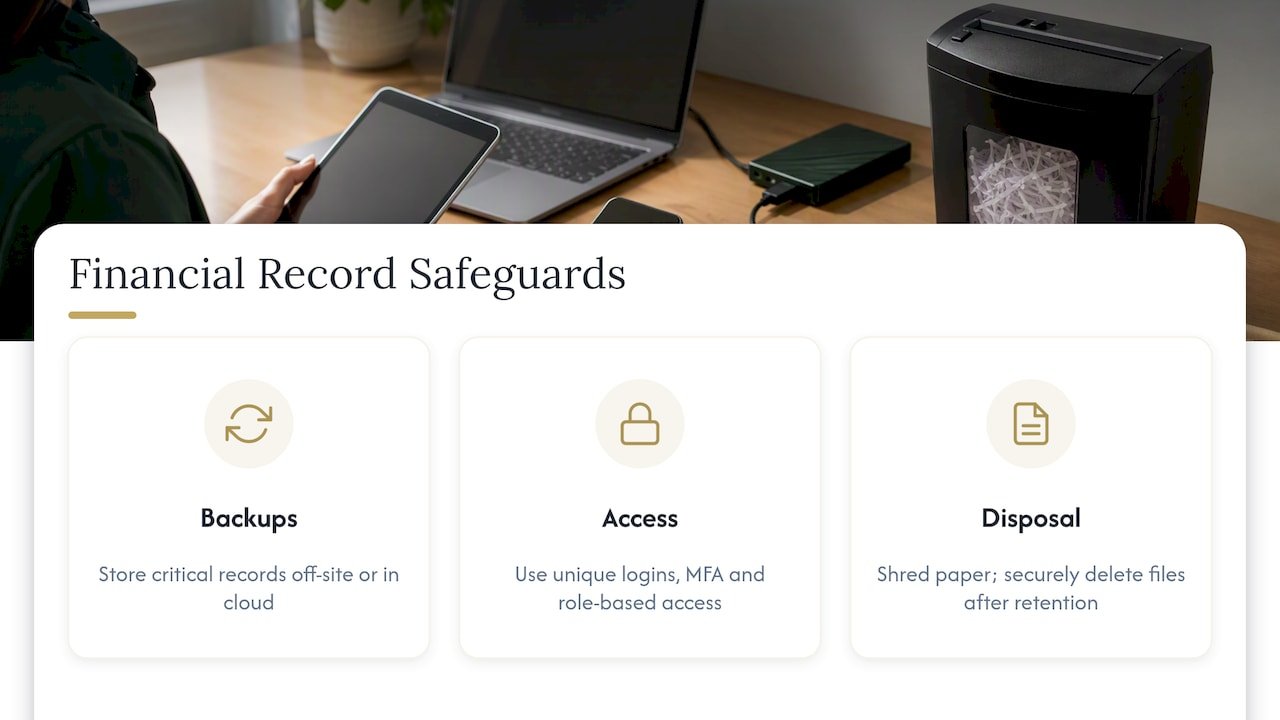
Back up off-site. The Small Business Administration advises regular backups of critical financial records, stored off-site or in the cloud, so a physical emergency at your office does not wipe out your books.
Limit who can see what. Use unique logins, multi-factor authentication and role-based access. A part-time helper who enters receipts does not need access to payroll files or bank credentials.
Dispose of records on schedule. Shred paper and securely delete digital files once you are past your retention period and no dispute or audit is pending. The FTC’s Safeguards Rule, which applies to covered financial institutions, calls for a written security program with encryption and multi-factor authentication, and for secure disposal of customer information no later than two years after its last use to serve the customer, with stated exceptions. Even if your business is not covered, those are sound benchmarks. The FTC also stresses that when you use outside service providers, responsibility for a secure program stays with the business owner, so ask any provider how they protect your files.
Perspective: what we see with small business clients
Most owners who come to us are not behind because they lack tools. They are behind because the tools were never connected to a routine. A bank feed with no reconciliation, a receipt app nobody uses, a shared folder with 400 untitled PDFs: each is a paperless system that exists on paper only.
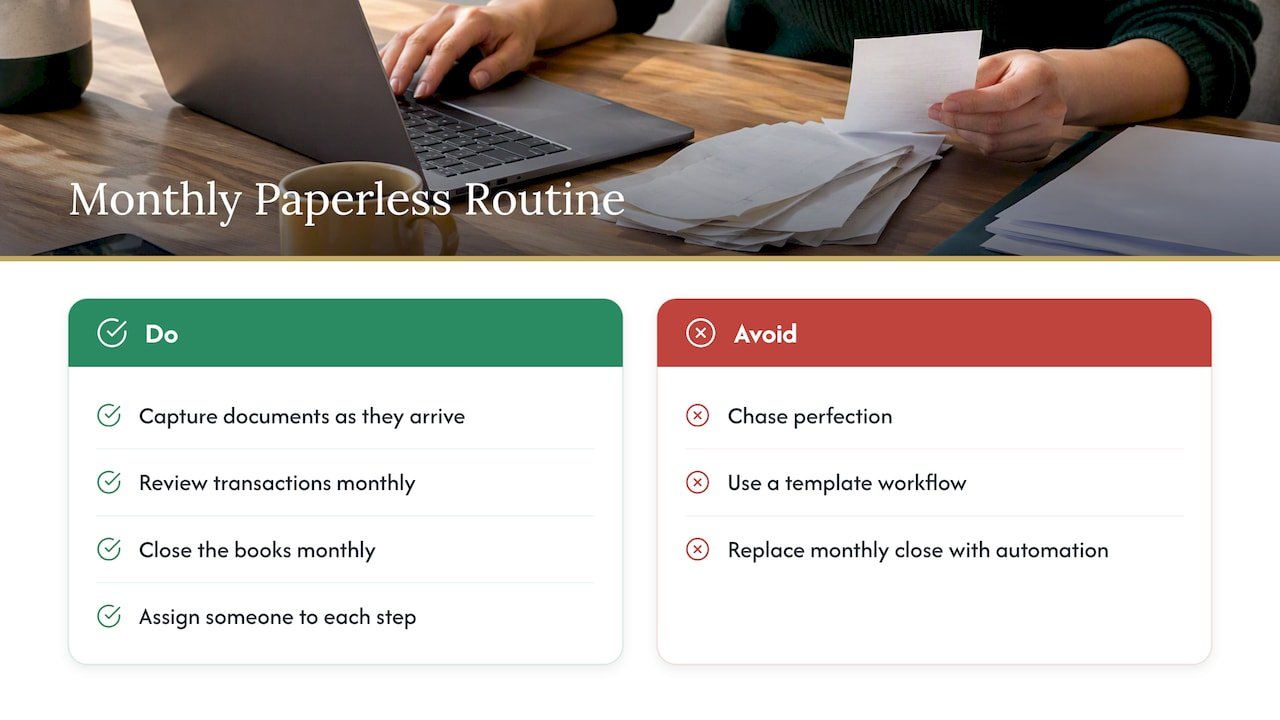
Our view is that the setup is the easy part. What matters is the monthly discipline: documents captured as they arrive, transactions reviewed, books closed, and a person accountable for each step. That is why we build paperless setups around the owner’s actual workflow instead of a template, and why we think a reliable monthly close beats any amount of clever automation.
We also encourage owners to go paper-light rather than chase perfection. Keep digital as the default, keep the few originals that matter, and spend the time you save on the business.
— Kelli
Getting help with your setup
If you would rather not build this alone, we set up and run paperless accounting for small businesses, virtually or in person. That includes QuickBooks setup, bookkeeping, payroll, tax preparation and workflow design, so documents, transactions and filings stay connected from the first day. See our accounting and bookkeeping services, or talk through your situation in a free consultation. If you are still deciding whether outside help makes sense, read why to hire a virtual accountant.
A two-week starter plan
If the whole project feels large, break it into small pieces.
Week 1
- Day 1 to 2: Walk through your five core flows and list where paper appears.
- Day 3: Write a one-page retention policy using the IRS periods above.
- Day 4 to 5: Connect bank feeds and set up receipt capture in your accounting software.
Week 2
- Day 6 to 7: Create your folder structure and naming pattern.
- Day 8 to 9: Scan the current year’s documents, newest first.
- Day 10: Turn on cloud backup and multi-factor authentication.
- Day 11 to 12: Brief your team and contractors.
- Day 13 to 14: Run your first reconciliation and review uncategorized items.
After that, work backward through older years as time allows, shredding only what falls outside your retention policy and what you have confirmed is legible in digital form.
FAQ
Does the IRS accept scanned receipts and digital records?
Yes. The IRS says electronic accounting records must provide a complete and accurate record of your transactions and remain accessible for examination. Scans need to be legible. Keep the system documented, and retrievable by date, vendor or transaction.
How long do I need to keep business records?
For most supporting records, the IRS says 3 years from filing. It extends to 7 years for worthless securities or bad debt claims, and employment tax records need at least 4 years. Property records stay until the limitations period ends for the year you dispose of the property. Your accountant can confirm how this applies to your business.
Can I shred paper originals after scanning?
Often yes, once the scan is clear, backed up and attached to the right transaction. Keep originals that carry legal weight, such as signed contracts, deeds or anything involved in a dispute or audit. When in doubt, ask your accountant before shredding.
Is paperless accounting more secure than paper?
It can be, if you use encryption, multi-factor authentication, role-based access and off-site backups. Cloud storage also protects against physical loss. It is less secure if passwords are shared or files sit unprotected on a laptop.
How much does it cost to go paperless?
Costs depend on the software you choose, how large your backlog is and whether you outsource scanning or setup. Many owners offset it through lower printing and storage costs. Our cost-saving accounting strategies guide covers where the savings tend to come from.
Sources
- The comprehensive guide to paperless accounting | QuickBooks
- How to create a paperless office for your small business | Xero
- Why fix it? Paperless accounting benefits your clients | Thomson Reuters
- Understanding the Pros and Cons of Digital Record-Keeping and Automation | Small Firm Diaries
- Step-by-Step Paperless Accounting Transition Guide | Financial Cents
- How to Migrate from Paper to a Digital Document Management System | DMACQ
- How should I record my business transactions? | IRS
- Publication 583 | IRS
- How long should I keep records? | IRS
- Accounting Document Management Software | DocuWare
- How to Go Paperless With Your Accounting Documents | Cleantably
- How to go paperless in your accounting firm | Xero US
- The Essential Guide to Paperless Bookkeeping | SaaSAnt
- Tips to Help Keep Your Small Business Cyber-Safe | SBA
- FTC Safeguards Rule: What Your Business Needs to Know | FTC