


To set up a recurring invoice in QuickBooks Online, go to Recurring transactions, select New, choose Invoice, pick a template type (Scheduled, Reminder or Unscheduled), fill in the customer, items, frequency and start date, then save the template. The steps take about five minutes. The decisions behind them take longer, and they decide whether billing runs on its own or quietly repeats a mistake every month.
This guide covers both ways to create the invoice, how to choose the right template type, how to collect payment automatically, and the checks we run on a first billing cycle. It is written for small business owners, freelancers and startups who bill the same clients on a regular schedule.
TL;DR
- Create the template under Recurring transactions (or from an existing invoice using Make invoice recurring), then choose Scheduled, Reminder or Unscheduled.
- Use Scheduled only when the amount and scope never change. Use Reminder for retainers or usage-based work that needs a quick review.
- Sending a recurring invoice does not collect payment. Online payment options and customer Autopay are separate settings.
- Watch the first cycle closely. A wrong date, term or amount repeats until you edit or turn off the template.
Table of Contents
- Before you start: what you need
- Choose your template type first
- Method 1: Create a recurring invoice from the Recurring transactions page
- Method 2: Turn an existing invoice into a recurring one
- Collect payment, not just send invoices
- Check the first billing cycle
- Keep recurring billing clean over time
- Our perspective: automate the routine, keep a human on the exceptions
- When to hand this off
- Common mistakes to avoid
- FAQ
- Sources
Before you start: what you need
Recurring templates are not available on every QuickBooks plan. QuickBooks lists automation of recurring transactions under the Essentials tier, which builds on Simple Start. If you do not see the Recurring transactions page, check your plan first.
Before you open the template screen, have these ready:
- The customer already set up with a valid billing email address.
- Your products and services list, with the right income account behind each item.
- Your standard payment terms, such as Net 15 or Net 30.
- A clear decision on how long the arrangement runs: open-ended, a set end date, or a fixed number of invoices.
If your products and services list or income accounts are messy, fix that first. Recurring invoices copy whatever is in the template, so a wrong income account is copied too. Our guide to setting up a small business chart of accounts walks through the structure that keeps invoices landing in the right place. If you are still setting up the file itself, see QuickBooks for startups.
Choose your template type first
The most important choice in the whole process is the template type. QuickBooks Online offers three: Scheduled, Reminder and Unscheduled.
| Template type | What QuickBooks does | Best for |
|---|---|---|
| Scheduled | Creates the invoice automatically on your schedule and can email it to the customer | Fixed monthly fees, subscriptions, rent, standard service plans |
| Reminder | Prompts you to review and send the invoice when it is due | Retainers with variable extras, usage-based work, changing scope |
| Unscheduled | Stores a reusable template with no automatic timing | Repeat jobs that come up irregularly |
The practical question is not whether to automate. It is whether the amount and scope are stable enough to send without looking. If a client pays $1,500 every month for the same package, Scheduled is a good fit. If the invoice sometimes includes reimbursable expenses, extra hours or a mid-year price change, Reminder keeps a person in the loop. You still save most of the typing, and you keep one chance to catch an error before the customer sees it.
Unscheduled is underused. If you invoice the same kind of project several times a year but never on a fixed date, a saved template means you never rebuild the line items from scratch.
Method 1: Create a recurring invoice from the Recurring transactions page
This is the cleanest route when you are starting from nothing. The steps below follow QuickBooks’ help guidance and its recurring invoice walkthrough dated March 17, 2025. Menu labels shift from time to time, so use the wording as a guide.
- Go to All apps, then Accounting, then Recurring transactions.
- Select New.
- Choose Invoice as the transaction type.
- Select the template type: Scheduled, Reminder or Unscheduled.
- Name the template clearly. “Acme Co – Monthly bookkeeping retainer” beats “Template 4” when you have thirty of them.
- Enter the customer, the products or services, quantities and prices.
- Set the billing frequency. QuickBooks gives weekly, monthly and quarterly as common examples.
- Enter the start date and, if the arrangement ends, an end date.
- Set the payment terms and due date.
- If no manual review is needed, turn on automatic email delivery.
- Select Save template.
Two details deserve attention. First, the start date. If you enter a date in the past, QuickBooks may create invoices for earlier periods, depending on your settings, so confirm what you expect before saving. Second, the email option. Automatic delivery is convenient, but only switch it on when you are comfortable with the customer receiving the invoice with no review from you.
Method 2: Turn an existing invoice into a recurring one
If you already have a finished invoice that you want to repeat, you do not need to rebuild it. Per QuickBooks’ invoice instructions:
- Open the invoice, or create a new one.
- Select Manage or the gear icon, then Scheduling.
- Turn on Make invoice recurring.
- Choose the type, the interval (daily, weekly, monthly or custom), and the start date.
- Add an optional end date or a maximum number of occurrences.
- Save.
This route is handy when a one-time project turns into an ongoing relationship. The first invoice becomes the model for the rest. Just remember that anything specific to that first invoice, such as a one-time setup fee or a unique memo, will repeat unless you remove it before saving.
Collect payment, not just send invoices
A recurring invoice that sits unpaid is just a recurring reminder that you are owed money. QuickBooks separates three things that are easy to blur together:
- Invoice creation: the template and schedule.
- Payment options: the ways a customer can pay from the invoice.
- Autopay: the customer’s permission for future invoices to be charged automatically.
Sending a recurring invoice does not authorize a recurring debit. Each step needs its own setup.
Turn on online payment options
Enable payment options on the invoice so customers can pay with one click. QuickBooks says available methods can include credit cards, ACH, PayPal, Venmo and Apple Pay, depending on your account settings and whether QuickBooks Payments is available to you. ACH bank transfers usually cost less per payment than cards, so offering that option first is worth considering for larger, regular invoices. Check current fees on your QuickBooks Payments agreement rather than relying on a number from a blog post.
Set up Autopay for recurring customers
Autopay is the closest thing to true recurring billing. Here is what QuickBooks’ Autopay help page says about the requirements:
- QuickBooks Payments is required.
- The recurring invoice must be pay-enabled.
- Autopay is available for invoices totaling $5,000 and below.
- Autopay is not available for recurring invoices with a daily interval.
The customer signs up for Autopay and enters payment information through an invoice, and later invoices process automatically. QuickBooks support guidance adds that customers need an Intuit account to enroll, and that you can confirm enrollment by opening the invoice’s Activity Tracker and looking for the Autopay Scheduled status.
Because enrollment is the customer’s choice, plan for clients who decline. Keep sending the invoice with a payment link, and follow up on due dates the way you would for any other invoice.
Check the first billing cycle
The first cycle is where mistakes show up. QuickBooks itself stresses confirming the first run, and it is good advice for a practical reason: a small template error repeats every cycle until someone edits or turns off the template.
On the first cycle, check each of these:
- Date: Did the invoice post on the date you intended?
- Amount and line items: Do they match the contract or agreement?
- Terms and due date: Is Net 30 really Net 30?
- Email delivery: Did it reach the right contact, and not land in a spam folder?
- Duplicates: Is there only one template for this customer and service? Two templates from a rushed setup is a classic way to bill someone twice.
- Payment status: If Autopay or online payments are on, does the payment flow into your bookkeeping records as expected?
Open the Recurring transactions list to see all templates in one place. From there you can edit a schedule or disable it when pricing, scope or the client relationship changes.
Keep recurring billing clean over time
Setting up the template is a one-time task. Keeping it accurate is a habit.
Review templates on a calendar. Once a quarter, open the list and ask of each template: is this client still active, is the price current, is the scope the same? Price increases are the most common item that gets forgotten, because nothing prompts you to change a template that is working.
Set end dates when you know them. For a six-month engagement, enter the end date at the start. It costs nothing and prevents billing a client after the work has stopped.
Name templates consistently. A naming pattern of client, service and frequency makes the list searchable and makes duplicates easier to spot.
Tie billing to your month-end routine. Recurring invoices are part of accounts receivable, which is one step in the broader bookkeeping cycle. If you reconcile monthly, confirm that every expected recurring invoice was created and that every payment was matched. Our bookkeeping best practices cover how to build that into a routine.
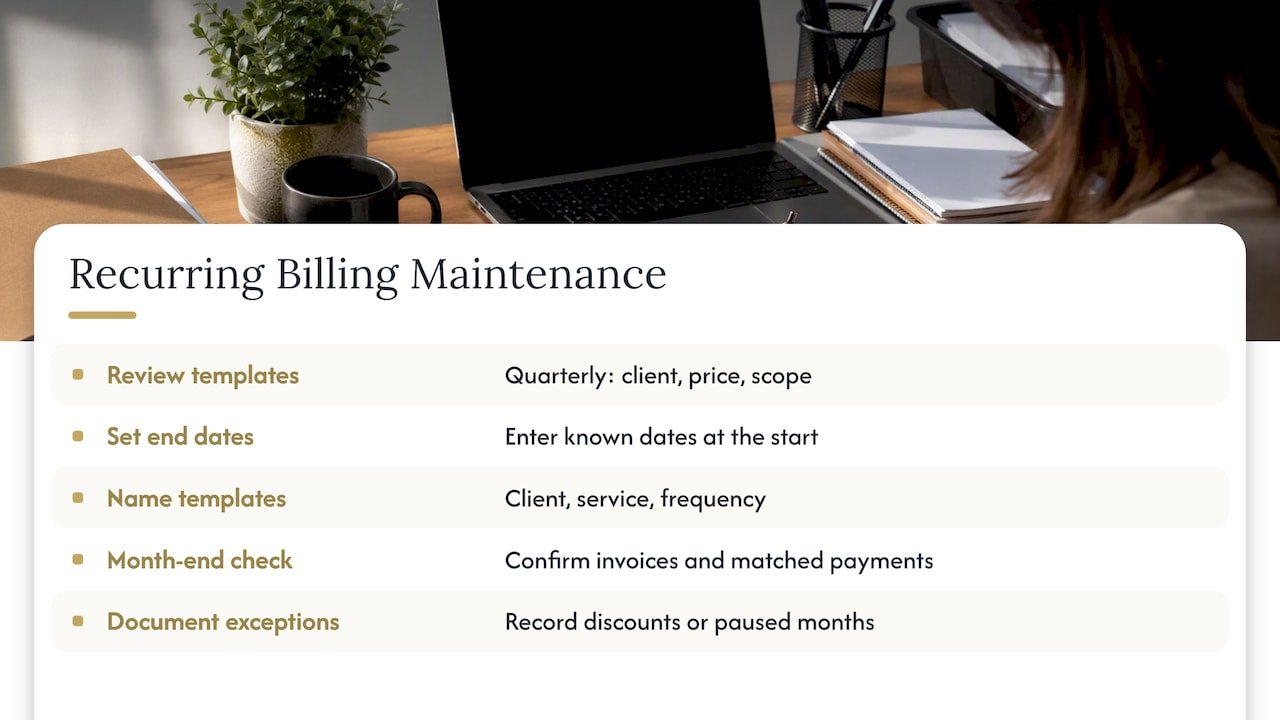
Document the exceptions. If a client gets a discount or a paused month, note it in the template memo or your client file. Whoever picks up the books later, whether that is you after a busy quarter or a new bookkeeper, will know why the numbers differ.
Which setup fits which business
| Situation | Suggested setup |
|---|---|
| Freelancer with a flat monthly retainer | Scheduled, monthly, email on, payment options on |
| Agency with retainer plus variable hours | Reminder, monthly, review before sending |
| Subscription or membership at a fixed price | Scheduled, with Autopay offered to each customer |
| Seasonal or project-based repeat work | Unscheduled template you pull up as needed |
| Large invoices above $5,000 | Scheduled or Reminder, but expect Autopay not to apply |
Our perspective: automate the routine, keep a human on the exceptions
We see the same pattern with small business clients. A recurring invoice setup goes in during a busy week, works well for three months, and then a price changes, a client pauses service or a second template gets created by accident. Nobody notices until a customer calls, or until year-end when the revenue numbers do not tie out.
Our view is that recurring billing is a bookkeeping control as much as a time saver. Automation is worth it when the work behind it is predictable. That is why we usually recommend Reminder templates for anything with variable scope, and Scheduled only for fixed fees. The few minutes of review each month cost far less than correcting a month of wrong invoices, and they give you a regular moment to look at who owes you what.
We also encourage owners to treat the first cycle as a test, not a launch. Confirm the invoice, the email, the payment path and the way the entry shows up in the books before you trust it to run alone. When we set up QuickBooks for a client, we build that check into the process and revisit templates when something changes in the business.
If you are billing manually today and it feels like a chore, that is a sign the process is ready for a template. If you are already automated and unsure whether it is accurate, a quick audit of your Recurring transactions list is the best place to start.
— Kelli
When to hand this off
Many owners can set up a few recurring invoices on their own. Outside help makes sense when you have dozens of templates, mixed billing types, payment processing to configure, or books that already need cleanup. If that sounds like your business, our accounting and bookkeeping services cover QuickBooks setup, ongoing bookkeeping and customized financial reporting, delivered virtually or in person. You can also book a free consultation to talk through your billing setup. If you are weighing costs first, see how accounting service pricing works for small businesses.
Common mistakes to avoid
- Choosing Scheduled for variable work. If amounts change, the template will keep sending the old amount.
- Assuming invoices mean autopay. Customers must enroll separately, and eligibility rules apply.
- Forgetting end dates. Open-ended templates keep billing after a contract ends.
- Leaving old templates active. Clients churn, but templates do not disappear by themselves.
- Skipping the first-cycle review. The cheapest moment to fix an error is before it repeats.
- Building templates on a messy item list. Clean products, services and income accounts before you automate.
FAQ
What is the difference between a recurring invoice and a recurring payment in QuickBooks?
A recurring invoice is a bill QuickBooks creates, and optionally emails, on a schedule. A recurring payment is the customer’s authorization to be charged automatically, which QuickBooks handles through Autopay. You can have one without the other, so a customer may receive a recurring invoice and still pay manually each time.
Can I use recurring invoices on any QuickBooks Online plan?
Not necessarily. QuickBooks lists automation of recurring transactions starting at the Essentials level. If the Recurring transactions page is missing, check your subscription before assuming something is wrong with your setup.
How do I stop or change a recurring invoice?
Open the Recurring transactions list, find the template, and edit it or turn it off. Changes apply to future invoices, not ones already created. If a client leaves or the price changes, update the template that same week so the next cycle is correct.
Should I let QuickBooks email recurring invoices automatically?
Only when the invoice never needs review. For fixed fees and stable scope, automatic email saves time. If amounts or line items vary, use a Reminder template so you can check the invoice before it reaches the customer.
Why does Autopay not appear for my recurring invoice?
Check the requirements. QuickBooks says you need QuickBooks Payments, a pay-enabled invoice, a total of $5,000 or less, and an interval other than daily. If all of those are met, confirm the customer has an Intuit account and has enrolled.
Sources
- Create recurring invoices and other transactions in QuickBooks Online
- How to schedule recurring invoices (QuickBooks, March 17, 2025)
- Create invoices in QuickBooks Online
- Online invoicing software for small businesses (QuickBooks)
- Set up Autopay for recurring invoices (QuickBooks)
- Can my customers set up autopay for invoices sent every 3 months? (QuickBooks Community)
- QuickBooks Online subscription levels